Exhibitor Badges & Registration
Below you’ll find everything you need to manage your team’s registration, invite guests, purchase badges, purchase lead retrieval licenses, and prepare for onsite badge collection.
Frequently Asked Questions
Your exhibitor registration portal is accessed through a secure login system. Here’s how it works:
1. Receive Your Login Email
The assigned admin (main contact) will receive an email from [email protected] (Visit Connect platform). This email includes your unique login link.
Please check your inbox and junk folder. If the email is missing, ask your IT team to whitelist (Approve) the no-reply address and check for internal delays.
If you haven’t received your login email, please contact [email protected].
2. Click the Secure Login Link
Click the link in the email to open your Exhibitor Registration Portal.
We recommend saving this link, as you will use it again for future access.
3. Enter Your Verification Code
-
For security, the system uses two-step verification.
-
A verification code will be sent to your registered email address.
-
Enter this code in the portal to complete your login.
4. Access Your Portal Dashboard
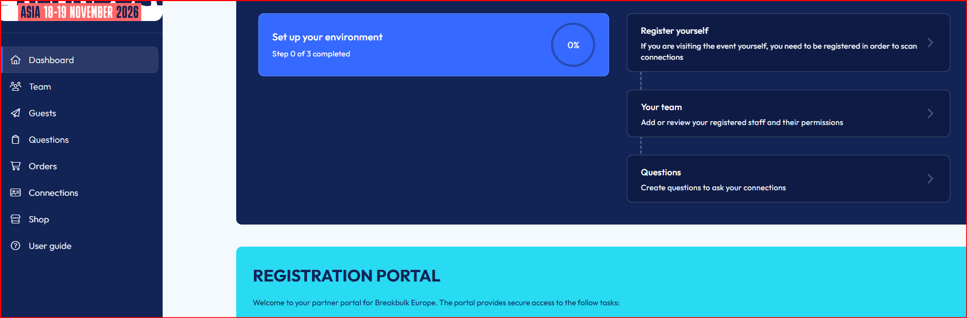
Once logged in, you can manage everything related to your participation.
The primary contact listed for your company is automatically assigned Admin Access. Admins can:
✔ Register booth staff.
✔ Manage Visit Connect lead-scanning permissions.
Only one admin can be assigned at a time.
If you need to change the admin, please send us the person’s name, job title, phone number, and email address, and we will update it for you.
-
Register additional booth staff.
-
Manage leads.
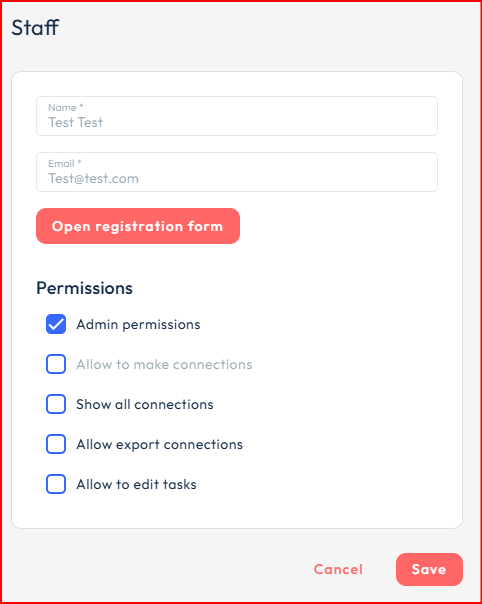
If the team member is already registered, click Edit on their profile, then select Permissions → Admin Permissions.
-
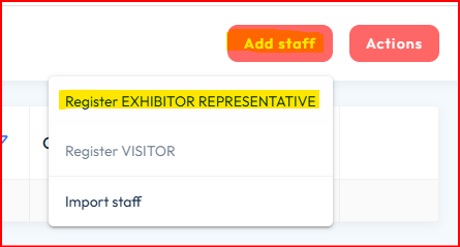
Open the Team tab.
-
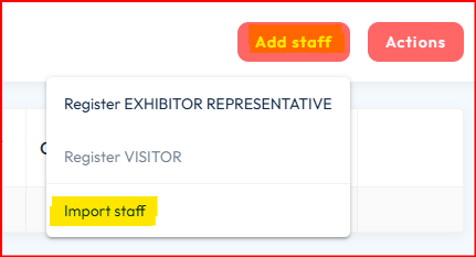
Click Add Staff to register each booth staff badge individually.
2. Go to the Download tab and get the Staff import Excel template.
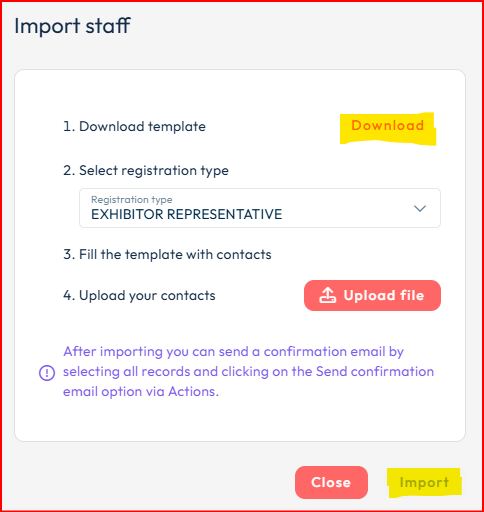
3. On the “Staff” tab, complete all mandatory fields:
-
First name
-
Last name
-
Company email
-
Company (Brand)
-
Job title
-
Country
-
Role
Important:
-
Use unique business email addresses
-
Ensure you have sufficient allocated badges
-
Do not delete/rename any columns or tabs
-
Save and close the file before uploading
-
Do not fill in “Last Name Prefix” — it may create duplicated surnames on badges.
How to Upload the File:
-
Go to Team → Add Staff → Import Staff
-
Upload the completed staff Excel template (saved on your desktop).
-
Click Import.
-
Note: a confirmation email will not be automatically sent to bulk-imported booth staff.
-
Admins can bulk-download all booth staff QR codes later.
Please note that there is no charge for tickets to Breakbulk Asia 2026 - you may register an unlimited number of exhibitor badges.
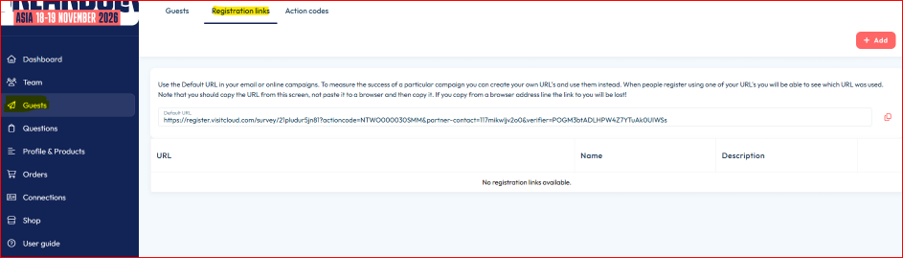
Share your company's unique guest registration link so your contacts can register themselves free of charge for the event.
-
Use your company's unique guest registration link to invite visitors and promote your participation.
-
Go to Guests → Registration Links → Default URL.
-
Copy and share your unique registration link with your guests.
-
All guests who register using your link will automatically appear in your guest list for easy follow-up.
Please do not use visitor tickets for your booth staff, as visitor tickets do not provide access during exhibitor access hours.
Each co-exhibitor receives their own registration login link and can manage their own registrations independently. In addition, every co-exhibitor:
-
Can register their own booth staff
-
Gets a company profile on the event website
-
Appears individually in the Breakbulk App
-
Can request and receive meetings independently
-
Can register an unlimited number of attendees at no charge
Exhibitor Admins Can Book for Their Booth Staff
How to Book Networking or Workshops:
-
Go to Team and double-click the selected team member’s name.
-
Click Open Registration Form.
-
Click Next through the tabs (Ticket Status → Edit Profile → Profile Picture) until you reach the Book Networking or Workshop page.
-
From there, select the desired workshops or networking events and add them to your basket.
-
To download a spreadsheet of all registered booth staff:
-
Go to Team → Actions → Export all staff
-
You may also email this list to your team members.
Cancel a Badge (but keep the allocation) only valid for exhibitor badges
-
Team → select the booth staff member you wish to cancel
-
Double click on their name→ Open registration form
-
Select Cancel this ticket
Stand Support Staff tickets are intended for external personnel supporting an exhibitor's booth during the event.
These are intended for external support staff such as catering, cleaning, security, AV teams, and hosts/hostesses. These badges are not valid for PR/media staff or photographers.
All Stand Support Staff registrations are subject to verification.
Each exhibitor is allocated 5 Stand Support Staff passes through their registration portal. If you require additional passes beyond your allocation, please contact Breakbulk Support at [email protected].
Please do not register exhibitors under this badge type.
The following personnel can be registered under this badge type:
-
Catering staff
-
Cleaning staff
-
Security personnel
-
AV technicians
-
Hosts/hostesses
-
Other external personnel supporting your booth (subject to verification)
Stand Support Staff badges provide:
-
Access to the exhibition halls during exhibitor access hours.
-
Access to the exhibitor's booth as required to support booth operations.
Please note: This badge type does not provide access to networking events, workshops, conference sessions, or other attendee activities.
Yes. All Stand Support Staff registrations are subject to verification and approval, and the number of passes is limited.
❌ This badge type is not valid for PR/media representatives, photographers, or videographers.
Badge collection & policies
-
A separate email containing your booth staff QR codes will be sent shortly before the event.
-
No printing is required. Simply bring your digital QR code and scan it onsite. Your QR code will also be available in the Breakbulk App.
-
Administrators can bulk-download all booth staff QR codes under Team → Actions → Print Staff Vouchers.
On-site badge printing is available at:
-
Badge printing stations
-
Registration Desk
Booth staff badges may be transferred provided they have not been printed or used onsite.
-
Contractors and builders: No badges are required. Wristbands will be issued onsite upon providing the booth details. (Exception: Breakbulk Middle East – digital contractor and vehicle passes must be obtained online in advance.)
-
Externally hired hosts: Must be registered.
-
Venue-hired hosts: Will receive temporary booth staff badges from the Organiser's Office.
The licence allows your booth staff to scan attendee badges using a mobile phone or any web-connected device.
Visit Connect enables you to capture leads on your smart device and access them in real time for immediate follow-up.
You can also:
-
Set bespoke questions (via the web portal)
-
Add free-text notes
-
Record voice memos
-
Take photos
You can purchase as many additional Lead Capture Licences as required for your booth. All Lead Capture Licences will share the bespoke questions you create, and all leads collected across your devices will be stored centrally in Visit Connect.
How to Purchase
Once your booth staff have been registered, go to the Shop in your registration portal to purchase a Lead Retrieval Licence.
After completing your purchase, you will automatically receive:
-
Visit Connect – Access Code
-
Visit Connect – Order Confirmation (including your scanner launch link)
Follow the instructions carefully to open the link on the mobile device you will use to collect leads.
Support
-
For assistance with Lead Retrieval, please contact Visit by GES at: [email protected]
.jpg?ext=.jpg)


.png?ext=.png)






.png?ext=.png)





_3.png?ext=.png)
_1.jpg?ext=.jpg)








.png?ext=.png)
.png?ext=.png)
.png?ext=.png)